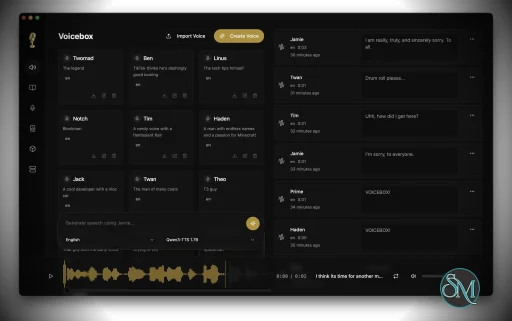
Voicebox is a generative AI model designed for speech synthesis, editing, and transformation. Unlike traditional text-to-speech tools that are trained for specific tasks, Voicebox can perform multiple speech-related functions using a single model.
It learns from raw audio and text, allowing it to generalize across tasks without needing retraining for each one.
Download Voicebox v0.5.0 - Software Mirrors |
|---|
Download Voicebox v0.5.0
cuda-libs-cu128-v1.tar.gz | 1.97 GB Download Voicebox v0.5.0
voicebox-server-cuda.tar.gz | 986.76 MB Download Voicebox v0.5.0
Voicebox_0.5.0_aarch64.dmg | 513.08 MB Download Voicebox v0.5.0
Voicebox_0.5.0_x64-setup.exe | 516.81 MB Download Voicebox v0.5.0
Voicebox_0.5.0_x64.dmg | 560.13 MB Download Voicebox v0.5.0
Voicebox_0.5.0_x64_en-US.msi | 517.95 MB Download Voicebox v0.5.0
Voicebox_0.5.0_x64_en-US.msi.zip | 517.95 MB Download Voicebox v0.5.0
Voicebox_aarch64.app.tar.gz | 511.76 MB Download Voicebox v0.5.0
Voicebox_x64.app.tar.gz | 558.75 MB |
Voicebox v0.5.0 Release Notes: The Capture release.
Voicebox stops being just a voice-cloning studio and becomes a full AI voice studio. Hold a key anywhere on your machine, speak, release — the transcript lands in the focused text field. Flip the primitive around and any MCP-aware agent — Claude Code, Cursor, Spacebot — speaks back through an on-screen pill in one of your cloned voices. A local LLM sits between the two, so transcripts come out clean and voice profiles can carry a personality that reshapes what the agent says before it gets spoken.

Dictation — speak anywhere, paste anywhere
- Global hotkey capture. Hold a customizable chord anywhere on your machine (defaults: right-Cmd + right-Option on macOS, right-Ctrl + right-Shift on Windows), speak, release. A floating on-screen pill walks through recording → transcribing → refining → done with a live elapsed timer. The transcript lands as clean text.
- Push-to-talk and toggle modes, each with its own chord. The default toggle chord adds Space to the push-to-talk chord. Holding PTT and tapping Space mid-hold upgrades a hold into a hands-free session without a gap in the recording.
- Auto-paste into the focused app. Once transcription finishes, Voicebox synthesizes a paste into whatever text field had focus when you started the chord — not wherever focus drifted while you were talking. Works across Dvorak / AZERTY layouts. Your clipboard is saved before and restored after.
- Chord picker UI. Customize either chord from Settings → Captures by holding the keys you want. Left/right modifier badges show whether a key is the left or right variant.
- Defaults stay out of your way. macOS defaults avoid left-hand Cmd+Option chords so the system shortcuts they collide with stay yours. Windows defaults route around AltGr collisions on German / French / Spanish layouts.
- Accessibility permission is scoped. If macOS Accessibility isn't granted, dictation still runs and transcripts still land in the Captures tab — only synthetic paste is disabled. The permission prompt lives inline next to the auto-paste toggle, not as a global banner.
Personality — voice profiles that speak for themselves
Voice profiles now carry an optional personality — a free-form description of who this voice is, up to 2000 characters. When set, two new controls appear next to the generate button, each powered by a new Qwen3 LLM running entirely locally:
- Compose — the shuffle button drops a fresh in-character line into the textarea. Click again for variety, edit before speaking.
- Speak in character — the wand toggle runs your input through the personality LLM before TTS, preserving every idea but delivering it in the character's voice.
The same LLM doubles as the refinement model, so there's one local LLM in the app, not two.
API surface. POST /generate, POST /speak, and the MCP voicebox.speak tool accept personality: bool. POST /profiles/{id}/compose powers the shuffle button. MCP client bindings carry a default_personality: bool that applies when personality isn't passed explicitly.
Agents — any MCP-aware agent gets a voice
Voicebox ships a built-in Model Context Protocol server at http://127.0.0.1:17493/mcp so Claude Code, Cursor, Windsurf, Cline, VS Code MCP extensions — any MCP-aware agent — can call into your local Voicebox install. Four tools ship with dotted names:
voicebox.speak — speak text in any voice profile, with optional personality: true to run through the profile's personality LLM first
voicebox.transcribe — Whisper transcription of a base64 blob or an absolute local path. Path mode is restricted to loopback callers so a Voicebox bound on 0.0.0.0 doesn't double as an unauthenticated arbitrary-local-file read primitive.
voicebox.list_captures — recent captures with their transcripts
voicebox.list_profiles — available voice profiles (cloned + preset)
- Streamable HTTP as primary transport. Cursor / Windsurf / VS Code / Claude Code all support it out of the box — drop a
mcpServers block with the URL and an X-Voicebox-Client-Id header.
- Stdio shim for clients that don't speak HTTP MCP. A
voicebox-mcp binary ships inside the app bundle as a Tauri sidecar. The Settings page renders the install snippet with the right absolute path pre-filled.
- Per-client voice binding. Pin Claude Code to Morgan, Cursor to Scarlett, Cline to its own voice — the
X-Voicebox-Client-Id header resolves to a bound voice whenever speak is called without an explicit profile. Managed in Settings → MCP.
- Profile resolution precedence. Explicit
profile arg (name or id, case-insensitive) → per-client binding → global default from capture_settings.default_playback_voice_id → error with a pointer to Settings.
- Speaking pill. Agent-initiated speech surfaces the same on-screen pill as dictation, in a
speaking state with the profile name and an elapsed timer. Silent background TTS is a trust hazard — the pill always shows what's coming out of your machine.
POST /speak REST wrapper. Same code path and voice resolution for shell scripts, ACP, A2A, GitHub Actions, or anything else that isn't MCP-native.
Claude Code one-liner:
claude mcp add voicebox --transport http --url http://127.0.0.1:17493/mcp --header "X-Voicebox-Client-Id: claude-code"
Refinement
A clean transcript needs more than Whisper. Each capture flows through a small Qwen3 LLM that strips fillers, fixes punctuation, and optionally rewrites self-corrections — all on-device.
- Loop-stripping before the LLM sees the transcript. Whisper's "thanks for watching thanks for watching thanks for watching…" hallucination loops are collapsed at a six-identical-tokens threshold (case-insensitive) so a small refinement model can't echo them back. Coverage spans single-word runs, multi-word phrases, CJK character runs, and Japanese emphasis patterns; legitimate repetition ("no, no, no, no, no") doesn't cross the threshold.
- Per-capture flag snapshot.
smart_cleanup, self_correction, and preserve_technical are stored on each capture, so refinement can be re-run later with different flags without losing the raw transcript.
- Model picker — Qwen3 0.6B (400 MB, very fast), 1.7B (1.1 GB, fast), 4B (2.5 GB, full quality). 0.6B is the default; 1.7B is the sweet spot for transcripts with code identifiers.
Captures tab + settings
Settings → Captures is now the home for the whole dictation flow:
- Dictation: global shortcut toggle, push-to-talk chord picker, toggle chord picker, live pill preview, auto-paste into focused field (with inline accessibility prompt).
- Transcription: model picker (Whisper Base / Small / Medium / Large / Turbo), language lock.
- Refinement: auto-refine toggle, model picker, smart cleanup, remove self-corrections, preserve technical terms.
- Playback: default voice for the Captures tab's "Play as" action — picking a voice from the split-button persists the choice across tab switches and restarts.
- Storage: captures folder quick-open.
Stories — timeline editor
The Stories tab graduates from a TTS sequencer into a real timeline editor. Same generation-row backing, but clips now compose with imported audio, per-clip levels, and a flexible track stack.
- Import external audio. Drag a music file onto the story content area or pick one from the new "Import audio" entry in the add-clip popover. Accepted formats: wav / mp3 / flac / ogg / m4a / aac / webm, capped at 200 MB. Imported clips show their filename instead of a profile name and skip the regenerate / version-picker controls — there's nothing to regenerate.
- Per-clip volume. A
Volume2 icon in the clip-edit toolbar opens a 0–200% slider. Adjustments apply live and to exports. Split and duplicate carry the volume forward into the new clips.
- Regenerate from both the clip's chat-list dropdown and the track-editor toolbar. Re-runs the underlying generation through the same path the History tab uses, with completion tracked in the global pending set.
- Add empty tracks above or below the timeline via tiny
+ strips at the top of the topmost label cell and the bottom of the bottommost. Sticky in the label column so they follow horizontal scroll.
- Zoom bar tracks the project. Min scope is 10 seconds visible (zoomed in cap), max is the entire project (zoomed out cap), default lands on 60 s. Both the +/− buttons and the scrollbar edge-drag handles clamp to those dynamic bounds.
Interface
- Theme selector. Light / dark / system in Settings → General, persisted across sessions. System mode listens for OS-level appearance changes and flips live without a restart.
- Scrubbable waveform player on captures. The capture detail card now embeds a WaveSurfer waveform with click-to-seek and a current / total timestamp pair, replacing the static duration label.
- Capture pill light mode. The on-screen pill gets a dedicated light palette so it stays legible against bright windows.
- Readiness checklist in the Captures settings sidebar. The same six-gate checklist the Captures empty state uses mirrors into Settings → Captures so a red gate can't hide behind a green toggle. Hidden once every gate is green. macOS-only rows (Input Monitoring, Accessibility) hide entirely on Windows and Linux.
Windows parity
Same dictation flow on Windows. Right-hand default chord (Ctrl+Shift) avoids AltGr collisions on layouts where Ctrl+Alt is the compose key. Focus is captured at chord-start so paste lands in the original field even if focus drifts during transcribe/refine. |
Install on Linux
We're currently working through CI issues that prevent us from shipping a reliable pre-built binary for Linux. In the meantime, building from source is straightforward and takes just a few minutes.
Prerequisites
Build from source
git clone https://github.com/jamiepine/voicebox.git
 cd voicebox
 just setup
 just build
The built app will be in tauri/src-tauri/target/release/bundle/
Or run in dev mode
just dev
Key Features
1. Advanced Speech Generation
Voicebox can generate natural-sounding speech from text while mimicking tone, style, and context. It produces high-quality audio that closely resembles real human voices.
2. Voice Cloning with Minimal Input
With just a few seconds of audio, Voicebox can replicate a speaker’s voice and use it to generate new speech content.
3. Speech Editing and Noise Removal
One of its most impressive features is the ability to edit audio without re-recording:
This works like an “eraser” for audio.
4. Multilingual Capabilities
Voicebox supports multiple languages and can even transfer voice style across languages, meaning a person’s voice can be recreated in another language naturally.
5. Cross-Task Generalization
Unlike older models, Voicebox can handle tasks it was not explicitly trained for, thanks to in-context learning. This makes it more flexible than traditional speech AI systems.
Real-World Use Cases
Voicebox opens up many possibilities:
Content creation and voiceovers
Audio editing for podcasts and videos
Accessibility tools for visually impaired users
Multilingual communication with natural voice output
Gaming and virtual assistants
It can generate speech up to 20 times faster than some older models, making it practical for real-time applications.
Open Source vs Research Version
There are currently multiple “Voicebox” implementations, which can be confusing:
Meta Voicebox (Research Model)
Open-source Voicebox tools
Local voice cloning apps inspired by similar concepts
Run on your own machine with full privacy
Support multiple TTS engines and editing tools
Enterprise Voicebox platforms
Pros and Cons
Pros
Extremely realistic speech generation
Multi-functional AI for voice tasks
Supports multilingual output
Can edit audio without re-recording
Highly flexible and future-ready
Cons
Full Meta version not publicly available
Potential misuse concerns with voice cloning
Requires strong hardware for local implementations
Still evolving and not fully standardized
Who Should Use Voicebox
Voicebox is ideal for:
AI developers and researchers
Content creators working with audio
Companies building voice-enabled products
Users interested in voice cloning and TTS
It is less suitable for casual users looking for a simple plug-and-play app.
Final Verdict
Voicebox is one of the most advanced AI speech technologies available today. It goes far beyond traditional text-to-speech, offering editing, cloning, and multilingual capabilities in a single system.
Voicebox represents the future of voice AI. While still evolving, its capabilities already show how powerful and flexible speech generation technology can become.
If you are exploring cutting-edge voice AI, Voicebox is one of the most powerful technologies in this space. Originally introduced by Meta as a research breakthrough, Voicebox represents a major leap in how machines generate and edit human-like speech.
Post a Comment/Report Broken Link: