AdGuard for Windows is a system-level ad blocker that goes significantly beyond a conventional browser extension. It filters traffic from browsers and applications, blocks advertisements and trackers, provides DNS and HTTPS filtering, and includes additional privacy and security features. This makes it one of the most comprehensive ad-blocking solutions available for Windows.
Unlike browser-based ad blockers that only operate inside a particular browser, AdGuard for Windows operates at the system level. It can filter traffic from Chrome, Firefox, Edge, and other browsers as well as applications installed on Windows.
This is the main reason to choose the Windows application over simply installing an ad-blocking browser extension.
Key Features of AdGuard for Windows
System-Wide Ad Blocking
AdGuard can block advertisements across the entire Windows system rather than limiting protection to web pages.
It can remove common advertising formats including banners, popups, video advertisements, and other web annoyances. Cosmetic filtering can also hide elements left behind after an advertisement is blocked.
This makes it particularly useful for applications that display advertisements through embedded web content.
Browser Protection
AdGuard works with virtually any browser without requiring a dedicated browser extension for basic filtering.
Chrome, Firefox, Edge, and other browsers can have their traffic filtered by the desktop application. AdGuard does provide a Browser Assistant extension, but it is primarily intended as a companion for controlling filtering directly from the browser.
HTTPS Filtering
One of AdGuard's more powerful capabilities is HTTPS filtering.
The application can decrypt HTTPS connections locally, inspect the traffic for advertisements and trackers, remove unwanted requests, and then establish the encrypted connection again. AdGuard states that the unencrypted content does not leave the device.
This allows filtering to work even when advertising and tracking requests are transmitted through encrypted connections.
However, HTTPS filtering requires AdGuard to install its own root certificate on Windows, so users should understand what this means before enabling the feature.
DNS Filtering
AdGuard can intercept DNS requests and block requests to known advertising and tracking domains.
It can also encrypt DNS traffic and provides advanced DNS configuration options, including DNS-over-HTTPS support and custom upstream DNS servers.
DNS filtering is useful because unwanted connections can be blocked before the application even establishes a connection to the advertising or tracking server.
Privacy Protection
AdGuard includes filters designed to block tracking systems, analytics, spyware, and other mechanisms used to collect information about browsing activity.
It also provides additional privacy controls beyond basic advertisement blocking.
Malicious Website Protection
AdGuard maintains a database of known malicious and phishing websites and can block requests to dangerous destinations.
This makes the application more than just an advertisement filter, although it should not be considered a replacement for a full antivirus or endpoint security product.
Application-Specific Filtering
Because AdGuard works at the system level, users can control filtering for individual applications.
This is useful when a particular application breaks because of filtering or when you only want AdGuard to operate on selected programs. The current Windows interface includes dedicated application management controls.
Custom Filters
Advanced users can add their own filtering rules and subscribe to additional filter lists.
This provides considerably more control than a typical "install and forget" browser extension.
Userscripts
AdGuard for Windows can also function as a userscript manager. Users can add and manage scripts, with automatic detection available for supported browser queries.
This adds another layer of customization for technically inclined users.
Download AdGuard Ad Blocker for Windows Latest Version
Download AdGuard Ad Blocker for Mac Latest Version
Download AdGuard Ad Blocker for Android Latest Version
Download AdGuard Ad Blocker for Android TV Latest Version
Download AdGuard Ad Blocker for iOS Latest Version
Download AdGuard Ad Blocker v8.0.0 - Software Mirrors |
|---|
AdGuard Ad Blocker v8.0.0 for Windows |
AdGuard Ad Blocker v8.0.0 Source Code |
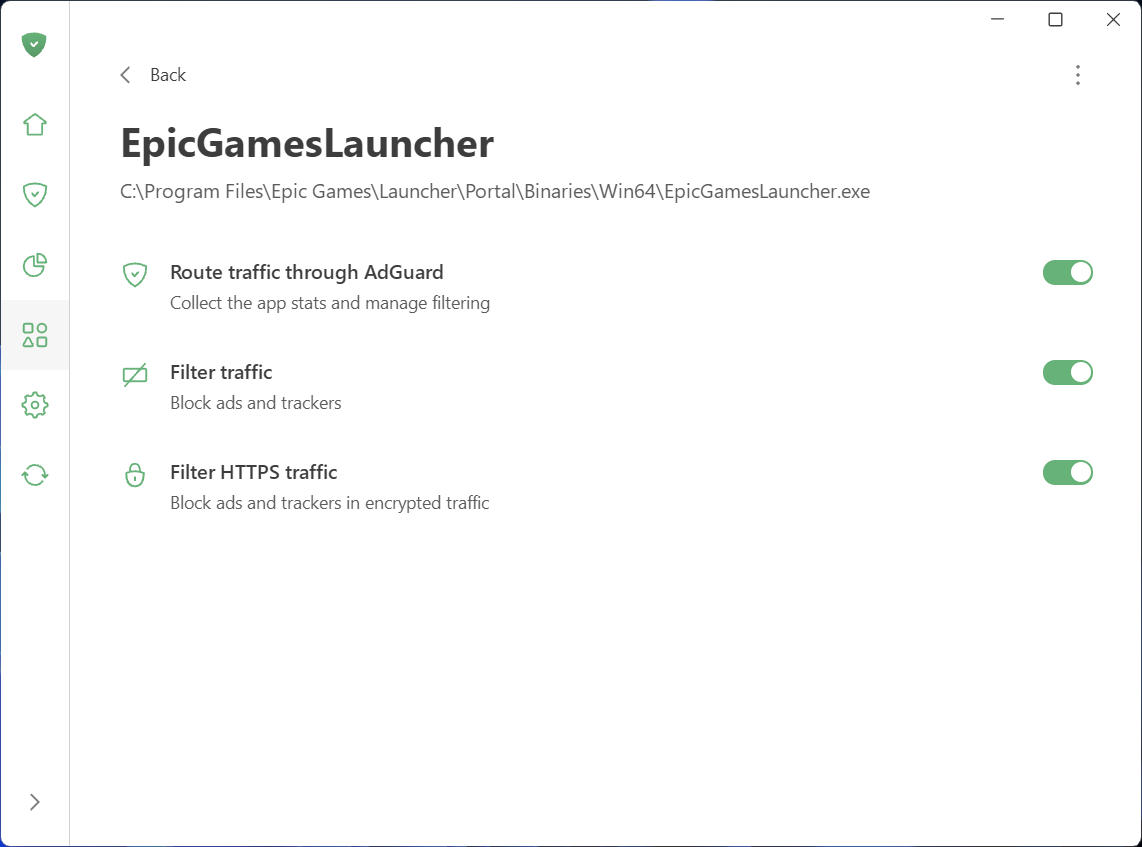
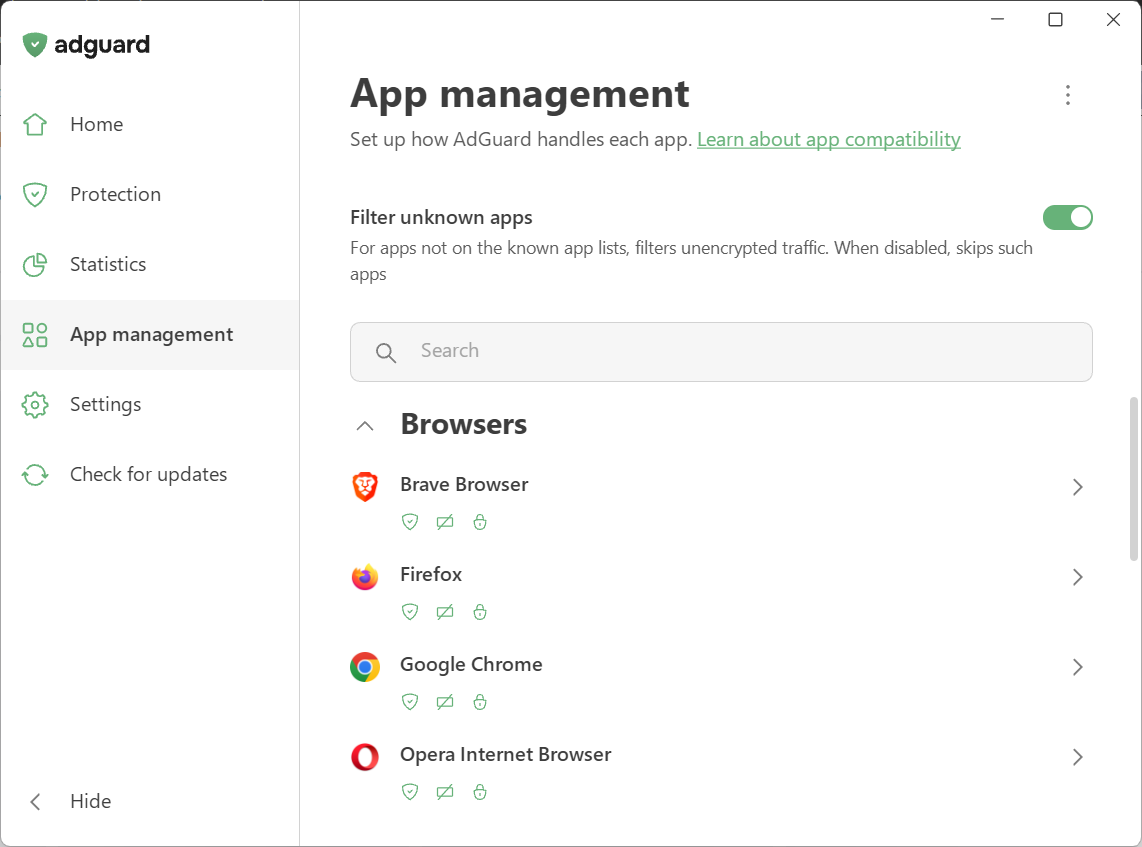
AdGuard Ad Blocker v8.0.0 Release Notes:Disclaimer AdGuard for Windows is not an open-source project. We use Github as an open bug tracker for users to see what developers are working on.A brand-new version, a new major number, a fresh design — and, most importantly, truly system-wide protection. AdGuard for Windows v8.0 doesn’t just look different: it gives you clearer control over the traffic on your computer and makes the most important settings easier to reach. Truly system-wide protectionAlongside the DNS filtering you already had, AdGuard offers full-fledged network-level filtering. This means stronger protection and more control: you can filter all Internet traffic on your device, so your protection is system-wide.AdGuard uses a special network driver that handles the actual sending and receiving of data, allowing us to filter traffic from every app on your device.While DNS filtering is still there, it is less flexible, and some tracking requests can still get through. This is where HTTPS filtering becomes essential. With it enabled, AdGuard can inspect traffic within Windows apps. This allows us to distinguish between legitimate content and tracking requests, even when they come from the same domain. By decrypting the traffic, AdGuard can identify the full URL and block only the tracking requests while leaving the rest of the app working just fine. While HTTPS filtering is enabled for browsers by default, it is disabled for most other apps to ensure better compatibility. You can always enable it for extra protection: just select the application you want to filter in App management and toggle on Filter HTTPS traffic. !Filter HTTPS traffic See what your apps are doing and take controlTo make managing traffic easier and give you a clear picture of what’s happening on your device, we’ve added two new sections: App management and Statistics.App managementApp management lets you control how each app accesses the Internet. By default, AdGuard filters everything. As soon as an app goes online, it appears in App management, and its traffic is routed through AdGuard. From there, you can configure what to do with the app and how to filter it:
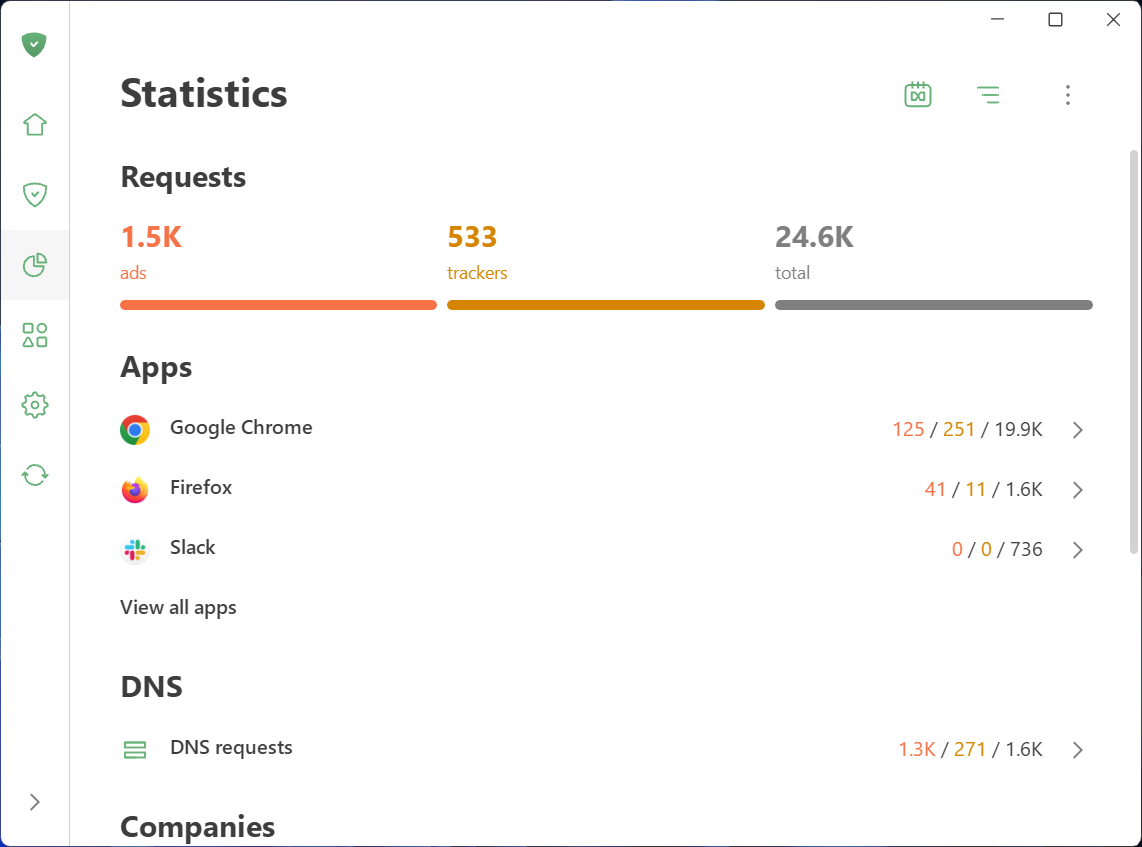
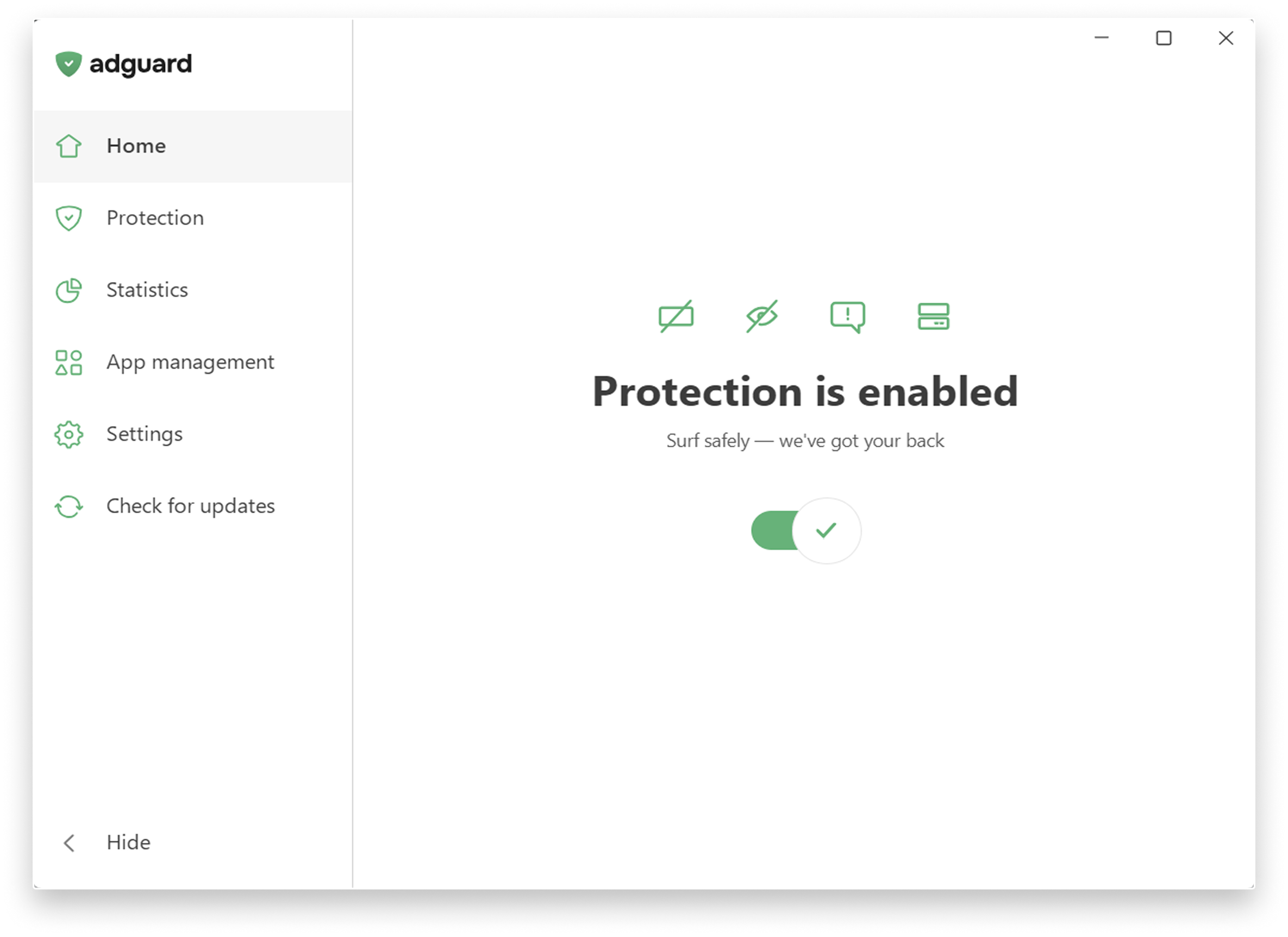
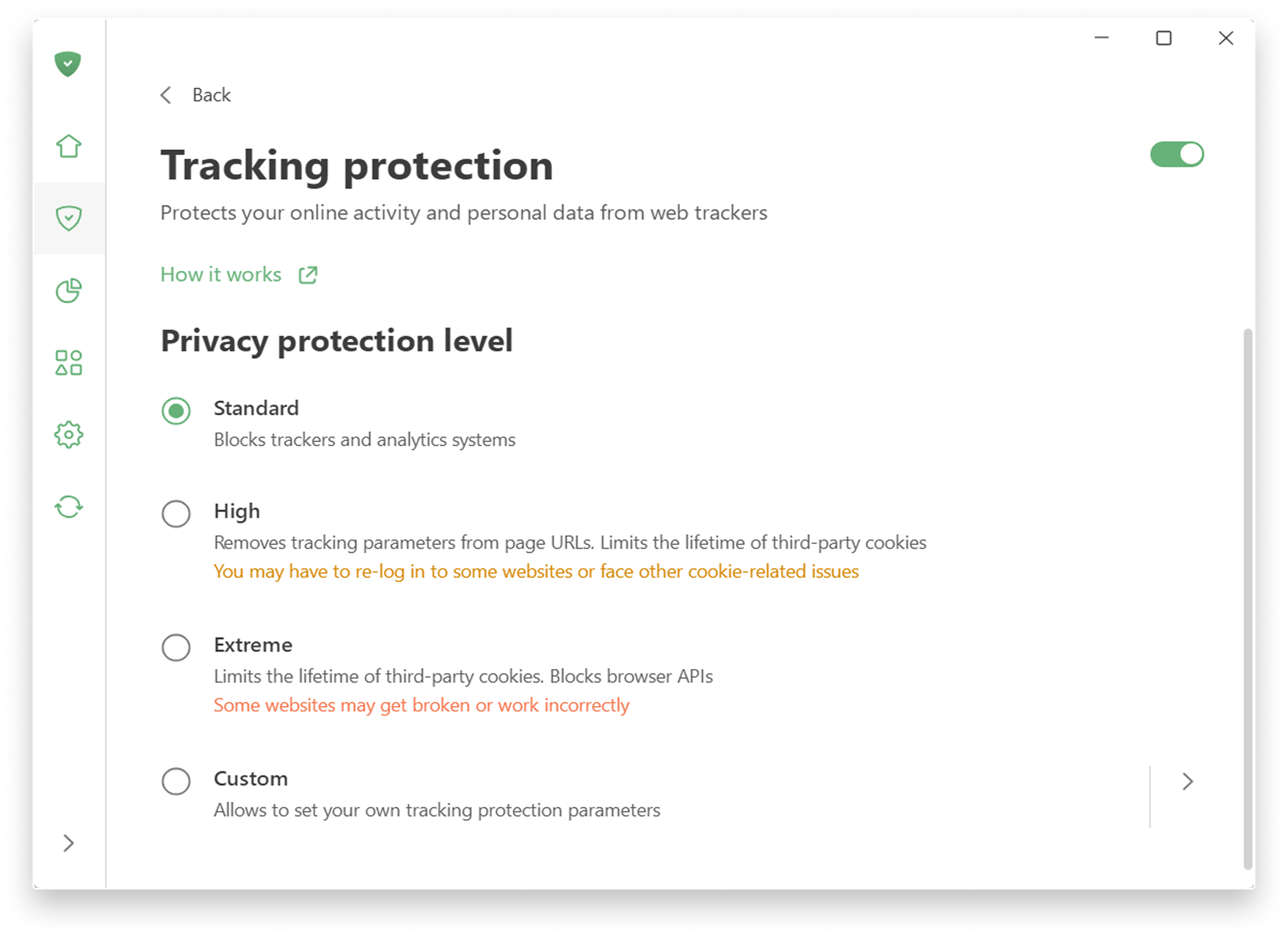
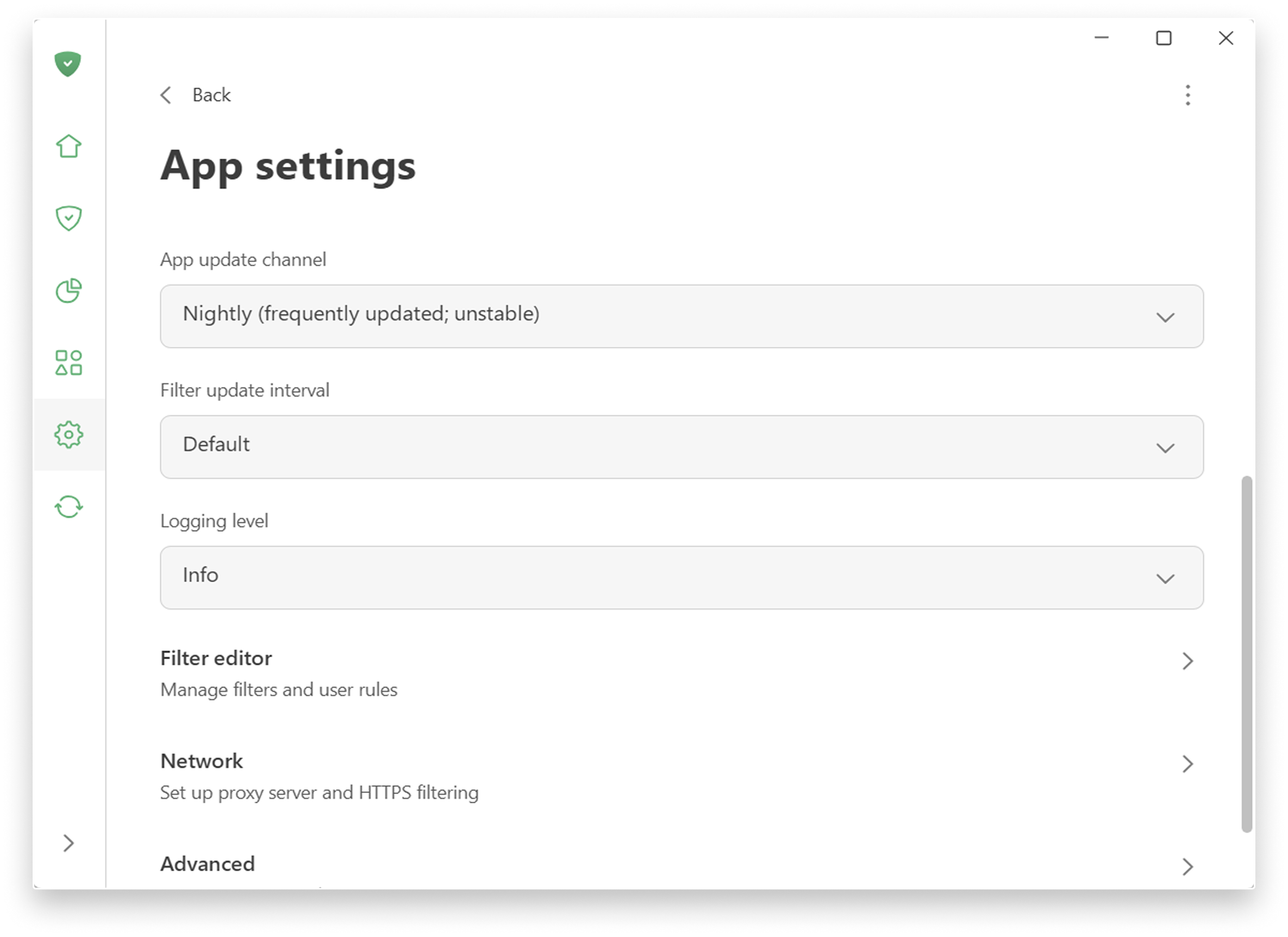
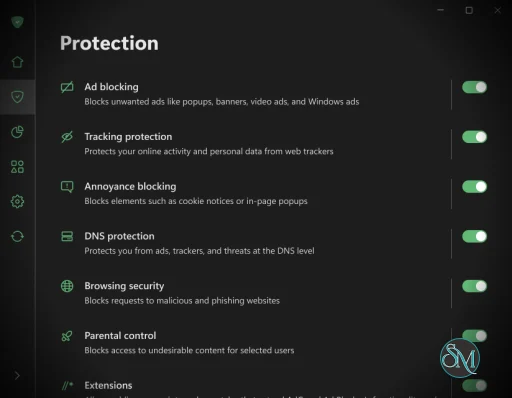
StatisticsStatistics show detailed network activity. The Companies section provides a perspective on all the companies that your device has sent requests to, while in Apps and Domains you see the stats specific traffic data for every app routed through AdGuard. You can quickly identify and block anything suspicious. !StatisticsNot only inside updates: A complete redesignAdGuard for Windows has been completely redesigned. Our focus was on simplicity and ease of use. The most important tools are now front and center, while advanced settings are still available — just tucked away so they don’t overwhelm new users.Key settings in plain sightThe app is designed to let you enable everything you need straight from the first screen. Just click the symbols you see — they stand for blocking ads and trackers, handling cookie notices and similar annoyances, and DNS protection. Fine-tune your protection: Head to the Protection section, where settings are clearly categorized, explained in simple terms, and enabled by one toggle. !Main screen Tracking protection: Choose a level of protection — from a simple, comfortable experience to a more advanced one, which includes deleting cookies for enhanced privacy. There is also a custom level where you can freely fine-tune everything to suit your preferences: like blocking notifications from websites or enabling anti-DPI protection. !Tracking protection Advanced approach to filtering: You can find low-level and network settings in Settings → App settings. !App settingsFor more details on new features, check the Knowledge Base.It’s been a huge overhaul, and we can’t wait to hear what you think. Share your thoughts and send improvement ideas via GitHub Issues. AdGuard for Windows direct download links: Release channel Beta channel Nightly channel |
Performance and User Experience
AdGuard's system-level approach makes it considerably more capable than a normal browser extension, but it also means the software is more deeply integrated into Windows.
The application uses a network driver to intercept traffic. When HTTPS filtering is enabled, it additionally installs a local root certificate to inspect encrypted connections.
For most users, this happens transparently in the background.
The advantage is that protection extends beyond the browser. The disadvantage is that system-level filtering can occasionally interfere with applications or websites that do not behave well with traffic interception. Fortunately, AdGuard provides application and network exclusions for troubleshooting these situations.
Advanced users will appreciate the extensive configuration options. Recent versions include detailed controls for DNS behavior, TLS handling, network exclusions, and filtering startup behavior.
Pros
System-wide ad blocking.
Works in browsers and applications.
Blocks advertisements, trackers, and annoyances.
HTTPS filtering.
DNS filtering.
Encrypted DNS support.
Phishing and malicious-site protection.
Application-specific filtering.
Custom filtering rules.
Userscript support.
Extensive configuration options.
Browser Assistant integration.
Regular filter updates.
Much more powerful than a basic browser extension.
Cons
More complex than a browser-only ad blocker.
HTTPS filtering requires installation of a local root certificate.
System-level filtering can occasionally cause application compatibility issues.
Uses a network driver.
Full functionality is not entirely free.
Some users may prefer the simplicity of a browser extension.
Who Should Use AdGuard for Windows?
AdGuard for Windows is particularly suitable for users who want system-wide advertisement and tracker blocking rather than browser-only protection.
It is also a strong choice for privacy-conscious users, people who regularly use ad-supported desktop applications, and advanced users who want detailed control over DNS, HTTPS, filtering rules, and individual applications.
If you only need to block advertisements while browsing the web, a browser extension is simpler and lighter. If you want filtering across the entire Windows environment, AdGuard for Windows is considerably more capable.
Final Verdict
AdGuard for Windows is one of the most comprehensive ad-blocking applications available for Windows.
Its biggest advantage is that it does not stop at the browser. By operating at the network and system levels, it can filter advertisements and trackers from browsers, applications, DNS requests, and encrypted HTTPS traffic.
The combination of content filtering, DNS filtering, HTTPS inspection, privacy protection, malicious-site blocking, application controls, custom rules, and userscript support makes it much closer to a local filtering platform than a traditional ad blocker.
The additional complexity is the trade-off. Users who only want basic browser ad blocking may find it excessive. For users who want comprehensive control over what their Windows machine communicates with, however, AdGuard is an excellent solution.
Developer:
Adguard Software Ltd.
Operating System:
Windows
Date Added:
2026-08-21T03:07:19.420Z
Categories:
Post a Comment/Report Broken Link: