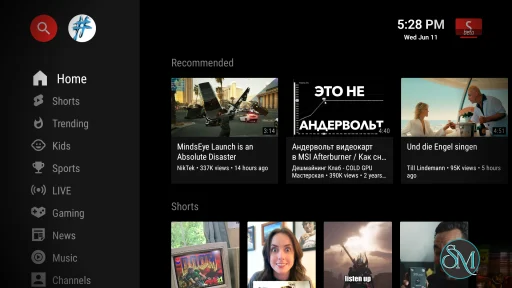
SmartTube is a free and open source media client designed specifically for Android TVs and Android TV boxes. It provides a TV-friendly interface with features such as SponsorBlock, high-resolution playback, HDR, adjustable playback speed, customizable controls, and an ad-free viewing experience. It does not require Google Services to operate.
SmartTube is a strong alternative for users who want more control over their TV viewing experience, particularly on Android TV devices.
Features
SmartTube offers a wide range of playback and customization features:
Ad-free playback
SponsorBlock integration
Support for up to 8K resolution
60fps playback
HDR support
Adjustable playback speed
Live chat
Customizable playback buttons
Picture-in-Picture
Auto Frame Rate support
Casting through device linking
High and low buffer options
Does not require Google Services
Built-in updater
Beta and stable release channels
TV-optimized interface
SponsorBlock can automatically skip sponsored sections, intros, outros, reminders, and other supported categories. Users can choose which categories should be skipped from the settings.
Review
SmartTube's biggest advantage is that it is designed specifically for television use rather than being a mobile application adapted for a larger screen. Navigation works well with a TV remote, while the interface focuses on browsing and playback without unnecessary distractions.
The built-in SponsorBlock integration is particularly useful for users who want to skip sponsored sections within videos. Unlike ordinary advertisements, these segments are part of the video itself, so SponsorBlock provides a different type of convenience from simply blocking advertising UI.
Playback support is another major strength. SmartTube supports 8K resolution, 60fps, HDR, adjustable playback speed, and other playback controls. The application also includes Auto Frame Rate support on compatible hardware, which can adjust the television refresh rate to better match the content.
SmartTube also does not require Google Services. This makes it useful on Android TV boxes and other devices where Google services are unavailable or undesirable.
There are some limitations. SmartTube is not officially supported on smartphones or tablets, and the developers specifically focus on Android TV devices. Comment functionality can be unstable, while voice search and casting may not work as reliably as they do with Google's official applications depending on the device.
There is also an important security consideration. The project's GitHub repository currently contains an announcement stating that the developer's development environment was infected by unknown malicious software and that some builds may have been affected. The developer says the environment was wiped and rebuilt, and that builds are now scanned with VirusTotal. Users should therefore obtain SmartTube only through the official project channels and pay close attention to the security guidance provided by the project.
Overall, SmartTube is one of the more capable open source media clients for Android TV. Its combination of playback controls, SponsorBlock, customization, and TV-focused design makes it a compelling choice for compatible devices.
Download SmartTube 32.38s - Software Mirrors |
|---|
SmartTube 32.38s for AndroidSmartTube_stable_32.38_x86.apk | 26.6 MB SmartTube_stable_32.38_universal.apk | 33.28 MB |
SmartTube 32.38s Source Code |
SmartTube 32.38s Release Notes:
🛡️ VirusTotal Analysis |
The app has a built-in updater with changelog. You can also find all releases and the changelog on the Telegram channel @SmartTubeNewsEN (readable without account) or on Github.
latest beta download
latest stable download
Performance and Compatibility
SmartTube supports Android TV devices and Android TV boxes, including NVIDIA Shield, Chromecast with Google TV, Xiaomi Mi Box, and compatible Amazon Fire TV devices. It can run on Android 4.3 and newer according to the project's current documentation.
The application supports high-resolution playback including 8K, 60fps, and HDR. Actual playback quality will depend on the Android TV hardware, display, network connection, available video format, and decoding capabilities of the device.
SmartTube is not compatible with non-Android TV platforms such as Samsung Tizen, LG webOS, and Apple TV. It is also not officially supported on smartphones and tablets.
A significant compatibility change affects newer Amazon Fire TV hardware. Amazon began moving new Fire TV devices to VegaOS in October 2025, and SmartTube is not compatible with Fire Stick 4K Select and newer devices using that platform.
System Requirements
SmartTube requires:
Android 4.3 or newer
Android TV, Google TV, or a compatible Android TV box
Sufficient storage for the application
Internet connection for streaming
SmartTube does not require Google Services.
For the best experience with high-resolution and HDR content, the capabilities of the TV box or television are more important than the minimum Android version.
Pros and Cons
Pros
Free and open source
Ad-free viewing experience
SponsorBlock integration
Supports up to 8K playback
60fps support
HDR support
Adjustable playback speed
Picture-in-Picture
Auto Frame Rate
Highly customizable interface
Does not require Google Services
Built specifically for Android TV
Supports older Android TV hardware
Cons
Not officially supported on smartphones or tablets
Not compatible with Samsung Tizen or LG webOS
Comment functionality can be unstable
Voice search can be less reliable than the official YouTube app
Casting requires additional setup
Newer Fire TV devices using VegaOS are not supported
Users need to be careful about downloading unofficial APKs
How to Install
SmartTube is not officially distributed through conventional app stores. The project specifically warns users not to download it from third-party APK websites or blogs because unofficial copies may contain malware or advertisements.
The recommended installation methods include downloading the official APK through the project's installation instructions, transferring the APK to the Android TV device, using a USB drive, or installing it through ADB.
On Chromecast with Google TV, Developer Options and installation from unknown sources must be enabled before installing the application.
SmartTube provides both stable and beta releases. The beta version receives new features and bug fixes faster, while the stable version is generally the safer choice for users who prioritize stability.
You can use either of the following methods to install the app:
(Easiest) Install Downloader by AFTVnews on your Android TV, open it and enter
kutt.to/stn_betaorkutt.to/stn_stable, then read, understand and confirm the security prompts. (You can also enter 79015 (for beta) or 28544 (for stable), but this requires an extra step to install the AFTVnews Downloader browser addon if you haven't already.)Install a file transfer app on your Android TV, download the APK on your phone or computer and transfer it to your TV (e.g. Send Files to TV from the Google Play Store / Amazon AppStore)
Download the APK onto a USB stick, put the USB stick into your TV and use a file manager app from the Google Play Store / Amazon AppStore (e.g. FX File Explorer or X-plore). Android's preinstalled file manager does not work! Do not get the ad-infested FileCommander.
If you are an advanced user, you can install it using ADB. guide | alternative guide
Troubleshooting: See device specific notes below. If installation fails, either your disk space is full or the APK file didn't download correctly; clear up space and try downloading again. If the app installed, but crashes when opening, make sure to install it to internal memory, not to an SD card / external storage.
Installation (Chromecast with Google TV)
On Chromecast with Google TV, installation of apps is blocked by default, so an extra step is required:
4.1. Enable Developer Options
On your Chromecast, open the side menu and go to Settings > System > About. Scroll down to the Android TV OS build section and click that repeatedly. A toast message will appear, explaining that you are a few steps away from being a developer. Continue clicking until you trigger it.
4.2. Turn on the "unknown sources" setting
Go back to the main Settings page and select Apps > Security & Restrictions > Unknown sources. Turn on the toggle for [Downloader by AFTVnews or] whichever file browser you decided to use [...].
After this, you can follow the general installation guide above.
Installation (Xiaomi devices with Chinese firmware)
Xiaomi's Chinese firmware might block the installation of the beta version. The international firmware is not affected. Solutions:
Use SmartTube's stable version instead (recommended)
Use the international firmware for your device
(if your device is from 2020 or before) You can do a factory reset and then install SmartTube beta before doing any system updates. You can then safely update your system, SmartTube should continue working.
Updating
The app has a built-in updater. You only need to follow the installation procedure once. A few seconds after launching SmartTube, it will notify you if there is any update and also show a changelog. You can disable automatic update checks or manually update in the settings under "about".
If the installation fails, either your disk space is full or the update didn't download correctly; clear up space and try updating again (Settings > About > Check for updates).
Frequently Asked Questions
What is SmartTube?
SmartTube is a free and open source media client designed for Android TVs and Android TV boxes.
Is SmartTube free?
Yes. SmartTube is free and open source.
Does SmartTube block advertisements?
SmartTube provides an ad-free viewing experience and also integrates SponsorBlock to skip sponsored segments within videos.
Does SmartTube require Google Services?
No. SmartTube is designed to work without Google Services.
Does SmartTube support 4K and 8K?
Yes. SmartTube supports high-resolution playback up to 8K when the device and content support it.
Can SmartTube be installed on a Samsung TV?
No. Samsung TVs using Tizen are not supported. SmartTube requires an Android-based TV device.
Can SmartTube be installed on an LG TV?
No. LG webOS is not supported. An Android TV box or compatible Android TV stick can be used instead.
Does SmartTube work on Amazon Fire TV?
It works on compatible Fire TV devices that run Android. New Fire TV devices using Amazon's VegaOS, including the Fire Stick 4K Select and newer compatible devices, are not supported.
Can SmartTube be installed on a phone?
The project does not officially support smartphones or tablets. SmartTube is designed for Android TV and TV boxes.
Can SmartTube download videos?
No. The project documentation states that downloading videos is not supported.
Post a Comment/Report Broken Link: