Win11Debloat is a free and open source PowerShell utility designed to remove unnecessary applications, disable unwanted Windows features, and improve the overall Windows 11 experience. Developed by Raphire, it combines dozens of optimization scripts into a single interactive tool that helps users reduce bloat, enhance privacy, and customize Windows without manually editing the registry or Group Policy settings.
Whether you're setting up a new PC or optimizing an existing installation, Win11Debloat provides an easy way to streamline Windows 11 while allowing users to choose exactly which changes to apply.
Windows 11 includes numerous preinstalled apps, promotional features, telemetry settings, and background services that many users never use. Removing these manually can be time-consuming and potentially risky.
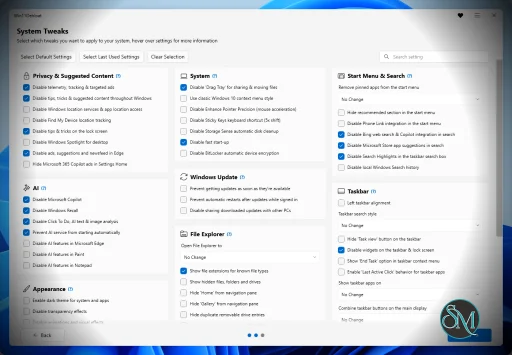
Win11Debloat automates many of these tasks through a guided interface and PowerShell scripts. Users can remove unwanted Microsoft Store apps, disable telemetry, turn off advertising features, restore classic Windows behaviors, and apply various quality-of-life improvements.
The project is open source, allowing users to review every script before running it.
Download Win11Debloat 2026.07.11 - Software Mirrors |
|---|
Win11Debloat 2026.07.11 Release Notes:What's Changed
|


Usage
Warning
Great care went into making sure this script does not unintentionally break any OS functionality, but use at your own risk! If you run into any issues, please report them here.
Quick method
Download & run the script automatically via PowerShell.
Open PowerShell or Terminal.
Copy and paste the command below into PowerShell:
& ([scriptblock]::Create((irm "https://debloat.raphi.re/")))Wait for the script to automatically download and launch Win11Debloat.
Carefully read through and follow the on-screen instructions.
This method supports command-line parameters to customize the behaviour of the script. Please click here for more information.
Traditional method
Manually download & run the script.
Download the latest version of the script, and extract the .ZIP file to your desired location.
Navigate to the Win11Debloat folder
Double click the
Run.batfile to start the script. NOTE: If the console window immediately closes and nothing happens, try the advanced method below.Accept the Windows UAC prompt to run the script as administrator, this is required for the script to function.
Carefully read through and follow the on-screen instructions.
Advanced method
Manually download the script & run the script via PowerShell. Recommended for advanced users.
Download the latest version of the script, and extract the .ZIP file to your desired location.
Open PowerShell or Terminal as an administrator.
Temporarily enable PowerShell execution by entering the following command:
Set-ExecutionPolicy Unrestricted -Scope Process -ForceIn PowerShell, navigate to the directory where the files were extracted. Example:
cd c:\Win11DebloatNow run the script by entering the following command:
.\Win11Debloat.ps1Carefully read through and follow the on-screen instructions.
This method supports command-line parameters to customize the behaviour of the script. Please click here for more information.
Key Features of Win11Debloat
Remove Built-In Apps
Win11Debloat can uninstall many preinstalled Windows applications, including games, promotional apps, and other software that ships with Windows but may not be needed.
The tool also allows users to keep selected applications while removing the rest.
Privacy Improvements
The utility includes numerous privacy-focused options, such as disabling telemetry, reducing diagnostic data collection, turning off advertising identifiers, and disabling personalized recommendations where possible.
User Interface Customization
Win11Debloat restores or adjusts many Windows interface behaviors, including taskbar options, File Explorer settings, context menus, search preferences, and other visual customizations.
Disable Unwanted Features
Users can disable Microsoft consumer experiences, suggested content, widgets, Copilot integration where supported, background services, and various startup components that may consume system resources.
Interactive Menu
Unlike many optimization scripts that require editing configuration files, Win11Debloat provides an interactive menu that lets users choose which optimizations to apply.
For experienced users, command-line parameters are also available for unattended deployments.
Enterprise and Deployment Support
The project supports automation, making it useful for IT administrators who need to prepare multiple Windows installations with consistent settings.
Open Source and Transparent
All scripts are publicly available on GitHub, allowing users to understand exactly what changes are being made before executing them.
Performance and User Experience
Win11Debloat is straightforward to use, even for users with limited PowerShell experience. The interactive interface clearly explains available options, and the project documentation provides guidance for different deployment scenarios.
Applying optimizations usually takes only a few minutes. Many users report improved responsiveness, reduced background activity, and a cleaner Start menu after removing unnecessary applications and services.
Because the tool modifies system settings, users should create a restore point or system backup before applying large numbers of changes, especially on production machines.
Pros
Free and open source.
Removes unnecessary Windows applications.
Improves privacy settings.
Interactive and beginner-friendly interface.
Supports unattended automation.
Well-documented with active development.
Highly customizable.
Useful for both personal and enterprise deployments.
Cons
Only supports Windows 11.
Some optimizations may disable Microsoft features that certain users rely on.
Requires administrator privileges.
Users should review options carefully before applying changes.
Who Should Use Win11Debloat?
Win11Debloat is ideal for Windows enthusiasts, gamers, developers, IT professionals, and privacy-conscious users who want greater control over their Windows 11 installation.
It is also valuable for system administrators preparing clean Windows deployments or reducing unnecessary software on newly installed systems.
Users who depend heavily on Microsoft's integrated services should review each option carefully before removing built-in components.
Final Verdict
Win11Debloat is one of the most comprehensive and trustworthy Windows optimization tools available. Its combination of application removal, privacy enhancements, interface customization, and automation capabilities makes it an excellent choice for anyone looking to simplify and optimize Windows 11.
The project's transparency, active maintenance, and flexible configuration options set it apart from many one-click optimization tools. For users who want a cleaner, more efficient Windows installation, Win11Debloat is an outstanding solution.
Developer:
Jeffrey Raphire
Operating System:
Windows
Date Added:
2026-07-14T12:10:45.240Z
Categories:
Post a Comment/Report Broken Link: