OptimizerDuck is a Windows system optimization tool focused on improving performance, reducing unnecessary background processes, and simplifying common maintenance tasks.
The software combines cleanup utilities, startup management, privacy tweaks, and performance related adjustments into a lightweight desktop application.
OptimizerDuck targets users who want easier access to common optimization settings without manually editing Windows configuration tools.
OptimizerDuck is a lightweight Windows optimization and tweaking utility designed to help users improve system responsiveness, remove unnecessary background activity, and apply common performance tweaks through a simplified interface. Unlike larger all in one system maintenance suites packed with aggressive upselling and bundled features, OptimizerDuck focuses more on straightforward optimization tools and cleaner usability.
The software appeals primarily to users looking for quick Windows cleanup and optimization without navigating overly complicated system utilities.
Key Features of OptimizerDuck
System Cleanup Tools
OptimizerDuck includes cleanup features for temporary files, cache data, unnecessary logs, and leftover system clutter.Startup Management
Users can disable unnecessary startup applications to improve boot speed and reduce background resource usage.Privacy and Telemetry Tweaks
The software includes options aimed at reducing Windows telemetry collection and disabling unnecessary background services.Performance Optimization Presets
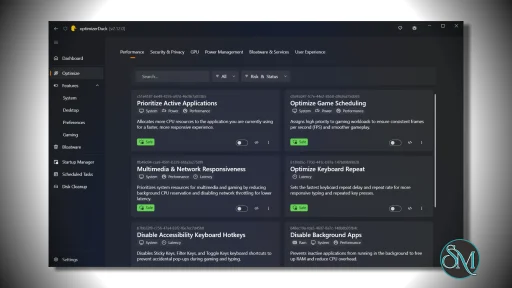
OptimizerDuck provides quick optimization profiles designed for gaming, general responsiveness, or lower resource consumption.Simple Interface Design
The interface focuses on accessibility and quick navigation rather than exposing overwhelming amounts of technical information.
Download optimizerDuck v2.28.0 - Software Mirrors |
|---|
Download optimizerDuck v2.28.0 |
optimizerDuck v2.28.0 Release Notes:NewSee what every apply and revert actually did
Documented Windows APIs instead of shell scripts
Change language and theme without restarting
Redesigned first-run dialog
Clear state for items that need no change
Dashboard and System Info
Localized scheduled task triggers
Improvements
Fixes
Full Changelog: v2.27.6...v2.28.0 |
User Experience
One of OptimizerDuck’s biggest strengths is its lightweight and approachable design.
Many Windows optimization suites become cluttered with advertisements, bundled features, registry cleaners, driver updaters, and subscription prompts. OptimizerDuck takes a cleaner approach with a simpler workflow and more focused utility set.
The interface is beginner friendly enough for casual users while still exposing enough controls for enthusiasts who want direct access to optimization options.
However, like most system optimization software, users should understand that performance gains vary significantly depending on hardware condition, Windows configuration, and existing system health.
Performance and Effectiveness
OptimizerDuck performs well as a lightweight maintenance utility.
Startup management and background service optimization can noticeably improve responsiveness on older or lower powered systems. Temporary file cleanup may also recover storage space and reduce system clutter.
That said, users should avoid unrealistic expectations. Modern Windows versions already manage memory, caching, and storage fairly efficiently. Optimization tools generally provide incremental improvements rather than dramatic hardware level performance increases.
The software appears most useful for simplifying maintenance tasks rather than acting as a miracle performance booster.
Security and Safety Considerations
System optimization tools always require careful use because aggressive tweaks can occasionally introduce instability or disable useful Windows functionality.
OptimizerDuck appears relatively conservative compared to more aggressive registry cleaner style applications, which is generally a positive sign.
Users should still create restore points or backups before applying major optimization changes, especially when modifying system services or telemetry settings.
Pros
Lightweight and simple interface
Beginner friendly optimization workflow
Useful startup and cleanup tools
Less bloated than many optimization suites
Quick access to Windows tweaks
Minimal resource usage
Cons
Performance improvements vary by system
Some tweaks may have limited practical impact
Advanced users may want deeper configuration options
Windows already handles many optimizations automatically
Optimization software category often creates unrealistic expectations
OptimizerDuck is best suited for casual Windows users, older PC owners, and users who want simple maintenance and cleanup tools without large commercial optimization suites.
Advanced power users may still prefer manual system tuning and native Windows administrative tools.
OptimizerDuck offers a clean and lightweight approach to Windows optimization with an emphasis on simplicity rather than aggressive marketing or bloated feature sets. While no optimization utility can magically transform weak hardware, the software provides a practical set of cleanup and maintenance tools for users looking to streamline Windows performance and reduce unnecessary background activity.
Post a Comment/Report Broken Link: